- A List of Writing Contests in 2022 | Exciting Prizes!
- Em Dash vs. En Dash vs. Hyphen: When to Use Which
- Book Proofreading 101: The Beginner’s Guide
- Screenplay Editing: Importance, Cost, & Self-Editing Tips
- Screenplay Proofreading: Importance, Process, & Cost
- Script Proofreading: Rates, Process, & Proofreading Tips
- Manuscript Proofreading | Definition, Process & Standard Rates
- Tips to Write Better if English Is Your Second Language
- Novel Proofreading | Definition, Significance & Standard Rates
- Top 10 Must-Try Writing Prompt Generators in 2024
- 100+ Creative Writing Prompts for Masterful Storytelling
- Top 10 eBook Creator Tools in 2024: Free & Paid
- 50 Timeless and Unforgettable Book Covers of All Time
- What Is Flash Fiction? Definition, Examples & Types
- 80 Enchanting Christmas Writing Prompts for Your Next Story
- Top 10 Book Review Clubs of 2025 to Share Literary Insights
- 2024’s Top 10 Self-Help Books for Better Living
- Writing Contests 2023: Cash Prizes, Free Entries, & More!
- What Is a Book Teaser and How to Write It: Tips and Examples
- Audiobook vs. EBook vs. Paperback in 2024: (Pros & Cons)
- How to Get a Literary Agent in 2024: The Complete Guide
- Alpha Readers: Where to Find Them and Alpha vs. Beta Readers
- Author Branding 101: How to Build a Powerful Author Brand
- A Guide on How to Write a Book Synopsis: Steps and Examples
- How to Write a Book Review (Meaning, Tips & Examples)
- 50 Best Literary Agents in the USA for Authors in 2024
- Building an Author Website: The Ultimate Guide with Examples
- Top 10 Paraphrasing Tools for All (Free & Paid)
- Top 10 Book Editing Software in 2024 (Free & Paid)
- What Are Large Language Models and How They Work: Explained!
- Top 10 Hardcover Book Printing Services [Best of 2024]
- 2024’s Top 10 Setting Generators to Create Unique Settings
- Different Types of Characters in Stories That Steal the Show
- Top 10 Screenplay & Scriptwriting Software (Free & Paid)
- 10 Best AI Text Generators of 2024: Pros, Cons, and Prices
- Top 10 Must-Try Character Name Generators in 2024
- 10 Best AI Text Summarizers in 2024 (Free & Paid)
- 11 Best Story Structures for Writers (+ Examples!)
- How to Write a Book with AI in 2024 (Free & Paid Tools)
- Writing Contests 2024: Cash Prizes & Free Entries!
- Patchwork Plagiarism: Definition, Types, & Examples
- Simple Resume Formats for Maximum Impact With Samples
- What Is a Complement in a Sentence? (Meaning, Types & Examples)
- What are Clauses? Definition, Meaning, Types, and Examples
- Persuasive Writing Guide: Techniques & Examples
- How to Paraphrase a Text (Examples + 10 Strategies!)
- A Simple Proofreading Checklist to Catch Every Mistake
- Top 10 AI Resume Checkers for Job Seekers (Free & Paid)
- 20 Best Comic Book Covers of All Time!
- How to Edit a Book: A Practical Guide with 7 Easy Steps
- How to Write an Autobiography (7 Amazing Strategies!)
- How to Publish a Comic Book: Nine Steps & Publishing Costs
- Passive and Active Voice (Meaning, Examples & Uses)
- How to Publish a Short Story & Best Publishing Platforms
- What Is Expository Writing? Types, Examples, & 10 Tips
- 10 Best Introduction Generators (Includes Free AI Tools!)
- Creative Writing: A Beginner’s Guide to Get Started
- How to Sell Books Online (Steps, Best Platforms & Tools)
- Top 10 Book Promotion Services for Authors (2025)
- 15 Different Types of Poems: Examples & Insight into Poetic Styles
- 10 Best Book Writing Apps for Writers 2025: Free & Paid!
- Top 10 AI Humanizers of 2025 [Free & Paid Tools]
- How to Write a Poem: Step-by-Step Guide to Writing Poetry
- 100+ Amazing Short Story Ideas to Craft Unforgettable Stories
- The Top 10 Literary Devices: Definitions & Examples
- Top 10 AI Translators for High-Quality Translation in 2025
- Top 10 AI Tools for Research in 2025 (Fast & Efficient!)
- 50 Best Essay Prompts for College Students in 2025
- Top 10 Book Distribution Services for Authors in 2025
- Top 10 Book Title Generators of 2025
- What Is an Adjective? Definition, Usage & Examples
- How to Track Changes in Google Docs: A 7-Step Guide
- Best Book Review Sites of 2025: Top 10 Picks
- Parts of a Book: A Practical, Easy-to-Understand Guide
- What Is an Anthology? Meaning, Types, & Anthology Examples
- How to Write a Book Report | Steps, Examples & Free Template
- 10 Best Plot Generators for Engaging Storytelling in 2025
- 30 Powerful Poems About Life to Inspire and Uplift You
- What Is a Poem? Poetry Definition, Elements, & Examples
- Metonymy: Definition, Examples, and How to Use It In Writing
- How to Write a CV with AI in 9 Steps (+ AI CV Builders)
- What Is an Adverb? Definition, Types, & Practical Examples
- How to Create the Perfect Book Trailer for Free
- 14 Punctuation Marks: A Guide on How to Use with Examples!
- Translation Services: Top 10 Professional Translators (2025)
- 10 Best Free Online Grammar Checkers: Features and Ratings
- 30 Popular Children’s Books Teachers Recommend in 2025
- 10 Best Photobook Makers of 2025 We Tested This Year
- Top 10 Book Marketing Services of 2025: Features and Costs
- Top 10 Book Printing Services for Authors in 2025
- 10 Best AI Detector Tools in 2025
- Audiobook Marketing Guide: Best Strategies, Tools & Ideas
- 10 Best AI Writing Assistants of 2025 (Features + Pricing)
- How to Write a Book Press Release that Grabs Attention
- 15 Powerful Writing Techniques for Authors in 2025
- Generative AI: Types, Impact, Advantages, Disadvantages
- Top 101 Bone-Chilling Horror Writing Prompts
- Best EBook Cover Design Services of 2025 for Authors
- Writing Contests 2025: Cash Prizes, Free Entries, and More!
- National Novel Writing Month (NaNoWriMo)
- Best Horror Books of All Time (Must-Read List)
- Best Book Trailer Services
- Your Guide to the Best eBook Readers in 2026
- 10 Best Punctuation Checkers for Error-Free Text (2026)
- Master Circumlocution: Definition, Examples & Literary Uses
- Best Historical Fiction Books: 30 Must-Read Novels
- Best 101 Greatest Fictional Characters of All Time
- Writing Contests 2026: Free Entries and Cash Prizes!
- Top 10 Book Writing Software, Websites, and Tools in 2026
- Top 10 AI Rewriters for Perfect Text in 2026 (Free & Paid)
- Top 10 Book Publishing Companies in the World (2026)
- Best Fonts and Sizes for Books: A Complete Guide
- 25 Figures of Speech Simplified: Definitions and Examples
- What is a Book Copyright Page?
- Final Checklist: Is My Article Ready for Submitting to Journals?
- 8 Pre-Publishing Steps to Self-Publish Your Book
- 7 Essential Elements of a Book Cover Design
- How to Copyright Your Book in the US, UK, & India
- Beta Readers: Why You Should Know About Them in 2024
- How to Publish a Book in 2024: Essential Tips for Beginners
- Book Cover Design Basics: Tips & Best Book Cover Ideas
- Why and How to Use an Author Pen Name: Guide for Authors
- How to Format a Book in 2025: 7 Tips for Book Formatting
- What is Manuscript Critique? Benefits, Process, & Cost
- 10 Best Ghostwriting Services for Authors in 2025
- Best Manuscript Editing Services of 2025
- Best Manuscript Critique Services (2026): Top 10 Picks
- How To Format a Book in Google Docs (Step-by-Step)
- ISBN Guide: What Is an ISBN and How to Get an ISBN
- How to Hire a Book Editor in 5 Practical Steps
- Self-Publishing Options for Writers
- How to Promote Your Book Using a Goodreads Author Page
- 7 Essential Elements of a Book Cover Design
- What Makes Typesetting a Pre-Publishing Essential for Every Author?
- 4 Online Publishing Platforms To Boost Your Readership
- Typesetting: An Introduction
- Quick Guide to Novel Editing (with a Self-Editing Checklist)
- Self-Publishing vs. Traditional Publishing: 2024 Guide
- How to Publish a Book in 2024: Essential Tips for Beginners
- How to Publish a Book on Amazon: 8 Easy Steps [2024 Update]
- What are Print-on-Demand Books? Cost and Process in 2024
- What Are the Standard Book Sizes for Publishing Your Book?
- How to Market Your Book on Amazon to Maximize Sales in 2024
- Top 10 Hardcover Book Printing Services [Best of 2024]
- How to Find an Editor for Your Book in 8 Steps (+ Costs!)
- What Is Amazon Self-Publishing? Pros, Cons & Key Insights
- Manuscript Editing in 2024: Elevating Your Writing for Success
- Know Everything About How to Make an Audiobook
- A Simple 14-Point Self-Publishing Checklist for Authors
- How to Write an Engaging Author Bio: Tips and Examples
- Book Cover Design Basics: Tips & Best Book Cover Ideas
- How to Publish a Comic Book: Nine Steps & Publishing Costs
- Why and How to Use an Author Pen Name: Guide for Authors
- How to Sell Books Online (Steps, Best Platforms & Tools)
- A Simple Guide to Select the Best Self-Publishing Websites
- 10 Best Book Cover Design Services of 2025: Price & Ratings
- How Much Does It Cost to Self-Publish a Book in 2025?
- Quick Guide to Book Editing [Complete Process & Standard Rates]
- How to Distinguish Between Genuine and Fake Literary Agents
- What is Self-Publishing? Everything You Need to Know
- How to Copyright a Book in 2025 (Costs + Free Template)
- The Best eBook Conversion Services of 2025: Top 10 Picks
- 10 Best Self-Publishing Companies of 2025: Price & Royalties
- 10 Best Photobook Makers of 2025 We Tested This Year
- Book Cover Types: Formats, Bindings & Styles
- A Beginner’s Guide on How to Self Publish a Book (2025)
- Index in a Book: Definition, Purpose, and How to Use It
- How to Publish a Novel: Easy Step-By-Step Guide
- How to Design a Book Cover: From Concept to Covers That Sell
- ISBN Guide: What Is an ISBN and How to Get an ISBN
- 8 Tips To Write Appealing Query Letters
- Self-Publishing vs. Traditional Publishing: 2024 Guide
- How to Publish a Book in 2024: Essential Tips for Beginners
- What are Print-on-Demand Books? Cost and Process in 2024
- How to Write a Query Letter (Examples + Free Template)
- Third-person Point of View: Definition, Types, Examples
- How to Write an Engaging Author Bio: Tips and Examples
- How to Publish a Comic Book: Nine Steps & Publishing Costs
- 10 Best Photobook Makers of 2025 We Tested This Year
- Book Cover Types: Formats, Bindings & Styles
- Index in a Book: Definition, Purpose, and How to Use It
- How to Publish a Novel: Easy Step-By-Step Guide
- How to start your own online publishing company?
- How to Design a Book Cover: From Concept to Covers That Sell
- ISBN Guide: What Is an ISBN and How to Get an ISBN
- Top 10 Book Publishing Companies in the World (2026)
- How to Create Depth in Characters
- Starting Your Book With a Bang: Ways to Catch Readers’ Attention
- Research for Fiction Writers: A Complete Guide
- Short stories: Do’s and don’ts
- How to Write Dialogue: 7 Rules, 5 Tips & 65 Examples
- What Are Foil and Stock Characters? Easy Examples from Harry Potter
- How To Write Better Letters In Your Novel
- On Being Tense About Tense: What Verb Tense To Write Your Novel In
- How To Create A Stellar Plot Outline
- How to Punctuate Dialogue in Fiction
- On Being Tense about Tense: Present Tense Narratives in Novels
- The Essential Guide to Worldbuilding [from Book Editors]
- What Is Point of View? Definition, Types, & Examples in Writing
- How to Create Powerful Conflict in Your Story | Useful Examples
- How to Write a Book: A Step-by-Step Guide
- How to Write a Short Story in 6 Simple Steps
- How to Write a Novel: 8 Steps to Help You Start Writing
- What Is a Stock Character? 150 Examples from 5 Genres
- Joseph Campbell’s Hero’s Journey: Worksheet & Examples
- Novel Outline: A Proven Blueprint [+ Free Template!]
- Character Development: 7-Step Guide for Writers
- What Is NaNoWriMo? Top 7 Tips to Ace the Writing Marathon
- What Is the Setting of a Story? Meaning + 7 Expert Tips
- What Is a Blurb? Meaning, Examples & 10 Expert Tips
- What Is Show, Don’t Tell? (Meaning, Examples & 6 Tips)
- How to Write a Book Summary: Example, Tips, & Bonus Section
- How to Write a Book Description (Examples + Free Template)
- 10 Best Free AI Resume Builders to Create the Perfect CV
- A Complete Guide on How to Use ChatGPT to Write a Resume
- 10 Best AI Writer Tools Every Writer Should Know About
- How to Write a Book Title (15 Expert Tips + Examples)
- 100 Novel and Book Ideas to Start Your Book Writing Journey
- Exploring Writing Styles: Meaning, Types, and Examples
- Mastering Professional Email Writing: Steps, Tips & Examples
- How to Write a Screenplay: Expert Tips, Steps, and Examples
- Business Proposal Guide: How to Write, Examples and Template
- Different Types of Resumes: Explained with Tips and Examples
- How to Create a Memorable Protagonist (7 Expert Tips)
- How to Write an Antagonist (Examples & 7 Expert Tips)
- Writing for the Web: 7 Expert Tips for Web Content Writing
- 10 Best AI Text Generators of 2024: Pros, Cons, and Prices
- What are the Parts of a Sentence? An Easy-to-Learn Guide
- What Is Climax Of A Story & How To Craft A Gripping Climax
- What Is a Subject of a Sentence? Meaning, Examples & Types
- Object of a Sentence: Your Comprehensive Guide
- What Is First-Person Point of View? Tips & Practical Examples
- Second-person Point of View: What Is It and Examples
- 10 Best AI Essay Outline Generators of 2024
- Third-person Point of View: Definition, Types, Examples
- The Importance of Proofreading: A Comprehensive Overview
- Patchwork Plagiarism: Definition, Types, & Examples
- Simple Resume Formats for Maximum Impact With Samples
- The Ultimate Guide to Phrases In English – Types & Examples
- Modifiers: Definition, Meaning, Types, and Examples
- What are Clauses? Definition, Meaning, Types, and Examples
- Persuasive Writing Guide: Techniques & Examples
- What Is a Simile? Meaning, Examples & How to Use Similes
- Mastering Metaphors: Definition, Types, and Examples
- How to Publish a Comic Book: Nine Steps & Publishing Costs
- Essential Grammar Rules: Master Basic & Advanced Writing Skills
- Benefits of Using an AI Writing Generator for Editing
- Hyperbole in Writing: Definition and Examples
- 15 Best ATS-Friendly ChatGPT Prompts for Resumes in 2025
- How to Write a Novel in Past Tense? 3 Steps & Examples
- 10 Best Spell Checkers of 2025: Features, Accuracy & Ranking
- Foil Character: Definition, History, & Examples
- How to Write a Children’s Book: An Easy Step-by-Step Guide
- How To Write a Murder Mystery Story
- What Is an Adjective? Definition, Usage & Examples
- Metonymy: Definition, Examples, and How to Use It In Writing
- Fourth-Person Point of View: A Unique Narrative Guide
- How to Write a CV with AI in 9 Steps (+ AI CV Builders)
- What Is an Adverb? Definition, Types, & Practical Examples
- How to Write A Legal Document in 6 Easy Steps
- 10 Best AI Story Generators in 2025: Write Captivating Tales
- How to Introduce a Character Effectively
- What is Rhetoric and How to Use It in Your Writing
- How to Write a Powerful Plot in 12 Steps
- How to Make Money as a Writer: Your First $1,000 Guide
- How to Write SEO Content: Tips for SEO-Optimized Content
- Types of Introductions and Examples
- What is a Cliffhanger? Definition, Examples, & Writing Tips
- How to Write Cliffhangers that Keep Readers Hooked!
- How to Write a Romance Novel: Step-by-Step Guide
- Top 10 Writing Tips from Famous Authors
- 10 Best Ghostwriting Services for Authors in 2025
- What is Ghostwriting? Meaning and Examples
- How to Become a Ghostwriter: Complete Career Guide
- How to Write a Speech that Inspires (With Examples)
- Theme of a Story | Meaning, Common Themes & Examples
- 10 Best AI Writing Assistants of 2025 (Features + Pricing)
- Generative AI: Types, Impact, Advantages, Disadvantages
- Worldbuilding Questions and Templates (Free)
- How to Avoid Plagiarism in 2025 (10 Effective Strategies!)
- How to Create Marketing Material
- What Is Worldbuilding? Steps, Tips, and Examples
- What is Syntax in Writing: Definition and Examples
- What is a Subplot? Meaning, Examples & Types
- Writing Challenges Every Writer Should Take
- What Is a Memoir? Definition, Examples, and Tips
- What Is Fiction? Definition, Types & Examples
- What Is Science Fiction? Meaning, Examples, and Types
- 50 Character Stereotypes: The Ultimate List!
- 50 Novel Writing Prompts (Categorized by Genre)
- 50 Haiku Writing Prompts For Your Inner Poet
- Direct Characterization: Definition, Examples & Comparison
- Indirect Characterization: Meaning, Examples & Writing Tips
- Direct vs Indirect Characterization: What’s the Difference
- How to Write Epic Fantasy
- 50 Non-fiction Writing Prompts For Your Inner Writer
- Master Circumlocution: Definition, Examples & Literary Uses
- How to Write a Good Villain (With Examples)
- How to Avoid AI Detection in 2026 (6 Proven Techniques!)
- How to Write a Cookbook: Step-by-Step Guide
- 5 Key Elements of a Short Story: Essential Tips for Writers
Still have questions? Leave a comment
Checklist: Dissertation Proposal
Enter your email id to get the downloadable right in your inbox!
[contact-form-7 id="12425" title="Checklist: Dissertation Proposal"]
Examples: Edited Papers
Enter your email id to get the downloadable right in your inbox!
[contact-form-7 id="12426" title="Examples: Edited Papers"]Looking
to self-publish
your book?
How To Format a Book in Google Docs (Step-by-Step)
 Jan 06, 2026
 7
min read
7
min read
- Tags: Book Editing, Book Writing
Google Docs needs no introduction when it comes to writing and editing texts or manuscripts.
For writers, this simple application solves a major problem: writing and formatting. Google Docs serves as a great alternative to expensive formatting software. It’s free, cloud-based, collaborative, and has comment functions that make it ideal for book formatting.
Nonetheless, using it to format a whole book or lengthy research papers can be tricky, and this information piece will tell you exactly how to format a book manuscript in Google Docs in easy steps, from setting the right page margins to exporting your finished file.
Get your documents formatted flawlessly! Get Started
Step No. 1: Create and customize the new doc
Begin by creating a fresh document and renaming it to the title of your manuscript. These are the elements we’ll cover:
- Paper Size
- Margins
- Orientation
Paper Size: You can set the paper size by clicking on File → Page Setup → Paper Size.
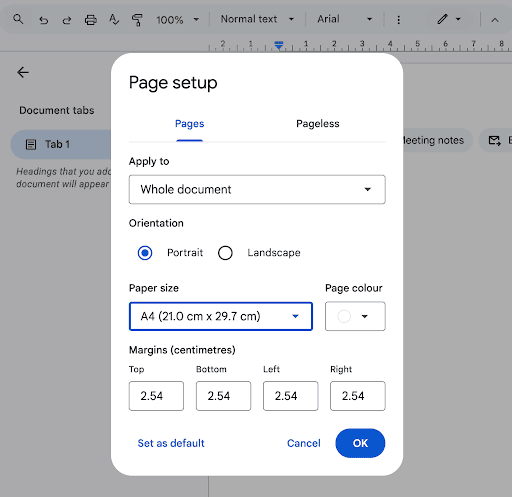
The most widely accepted paper size is 5.5’ x 8.5” or 6’ x 9”. The former is a popular “digest size” often used for novellas, smaller non-fiction books, and self-published titles, whereas the latter size is considered the industry standard for paperbacks.
Margins: A good rule of thumb is to start with 1 inch of margins on all sides. It keeps the text from running too close to the edges and improves readability.
Orientation: This heavily depends on the nature of your manuscript. If it’s a text-heavy book, portrait orientation is the norm. Choose landscape only when your content is image-rich, like portfolios, cookbooks, and photography books.
Step No. 2: Copy, paste, and style your manuscript
After you’ve done with setting up the page size, orientations, and margins, it’s time to copy your manuscript by pressing Ctrl/Cmd+Shift+C to detach the awkward formatting. Then paste the text with Ctrl/Cmd+Shift+V.
Get ready to style the crude text into a publishable book. These are the elements that you’ll need to edit to style your content:
1. Select the most convenient font over the stylish ones
It is tempting to choose a font that mimics the content and looks aesthetic over the widely used ‘Times New Roman’ or ‘Calibri.’
While selecting the font, keep the reader’s experience and comfort in mind because these decorative fonts, at a glance, look attractive, but reading over 70,000 words in Pacifico might need a second pair of eyes.
The font size should be kept at 11 for descriptions and 14 for headings or subheadings. This is what is used widely, but you can adjust the size as per your convenience.
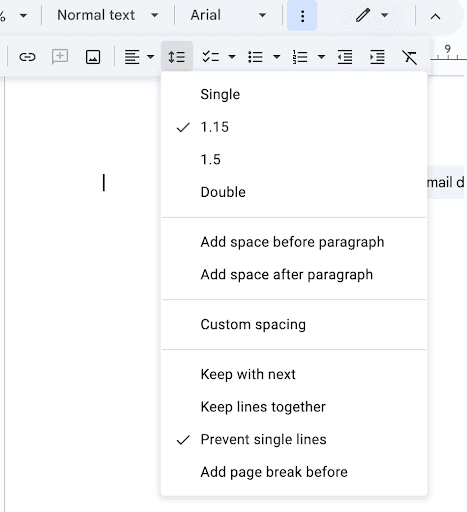
2. Mind the line spacing
The amount of space you give between each line can severely affect the readability and visual comfort. Make it too far, and the reader’s flow will get disrupted; make it too tight, and the reader will have to strain their eyes.
The norm for line spacing ranges between 1.115 and 1.5 to strike a good balance between reading comfort and visual appeal.
3. Paragraph indent
In most books, the indent is small yet consistent, around 0.5 inches, to make it easy for the eyes to spot the beginning of a new paragraph. Avoid using the space bar or the tab key to manually update every paragraph; instead, go to Format → Align & Indent → Indentation Options → Special Indent → First Line → then put 0.5
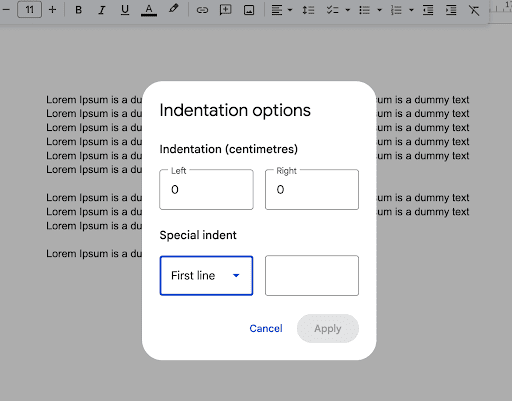
To continue this formatting in the rest of the doc, go to Format → Paragraph Styles → Normal Text → Update normal text to match.
4. Paragraph spacing
It ensures the space between the paragraphs and controls the visible gap between one paragraph and the next.
If you intend to follow a typical book layout, do not add extra space between paragraphs; instead, rely on indents to make the pages look continuous and structured.
To set it in Google Docs:
- Select the text
- Go to Format →Line & Paragraph Spacing→Custom Spcing
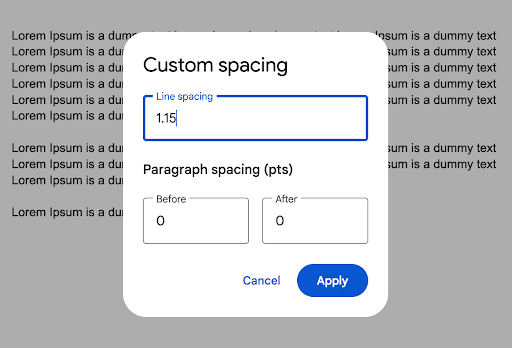
- Set before and after paragraph spacing to ‘0.’
- Click Apply.
This will prevent random gaps and will keep the content looking aligned and structured.
5. Align the text to the left
The general rule of thumb says to align the text on the left side, as it helps in avoiding those meandering rivers of white spaces that full justification often creates.
Step no. 3: Format your chapter heading styles
Emphasize these three things before formatting the headings:
- Consistency
- Clarity
- Professionalism
Why? Switching the font style throws off the readers. From reading 500 words in ‘Calibri’, to suddenly seeing a flowery cursive font heading will impact the reading flow. It’s subtle, but it does happen.
The better option is to format the chapter headings with the same font used in the headings to maintain consistency, clarity, and professionalism.
The next thing to do is to turn the ‘normal text’ heading into a ‘heading 1’, ‘heading 2’, or ‘heading 3’.
To do that:
- First, select the heading of your chapter.
- Second, click on the normal text icon.

- Then, match the turn the normal text into a heading 1 if it’s the title, Heading 2 for subheadings, and Heading 3 and 4 for supporting headings or for pointers.
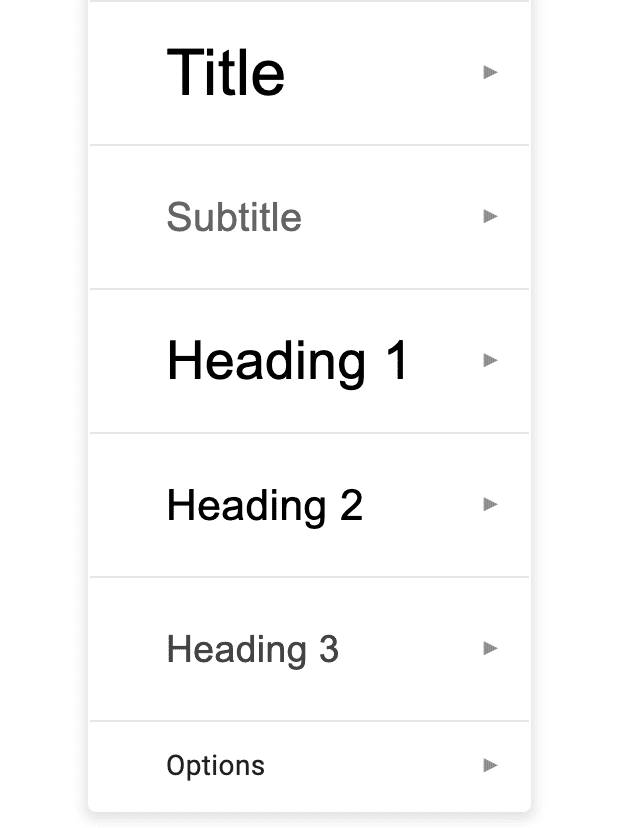
You can also use the keyboard shortcut “cmd+option+1” or “Ctrl+Alt+1” to turn normal text into heading 1, and subsequently “option+2/alt+2” or “option+3/alt+3” to format the subheadings.
Follow this heading hierarchy:
- Heading 1 for main chapter titles
- Heading 2 for section breaks within the chapter
- Heading 3 and 4 for smaller subsections or supporting points
And don’t forget to start each chapter on a new, fresh page. To break a page, click on Insert →Break→Page Break.
Step No. 4: Add The Front and Back Matter
We’re almost done, the text and heading formatting is done and dusted, now only the its and bits of the book cover, front and back matter remain. The front and back pages include a title page, copyright information, acknowledgements, table of contents, preface, and introduction.
Let’s discuss in detail:
Title Page
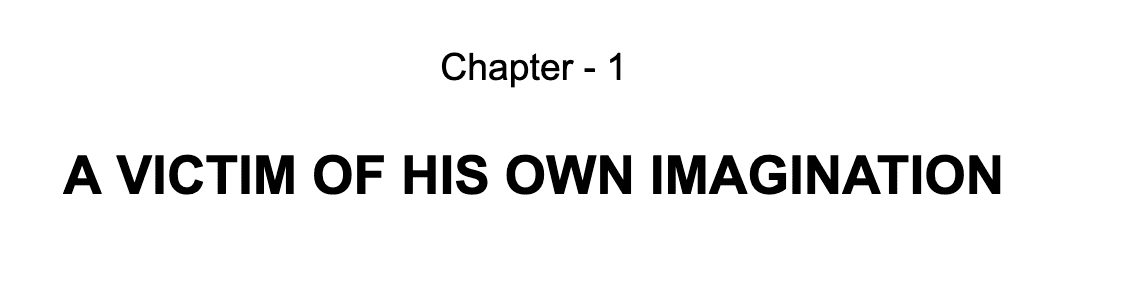
The beginning of the book. It contains the title, subtitle, author’s name, and publisher’s info.
The title of the page should be separated by a line break and should remain in the centre.
It should be considerably larger than other texts, ideally around 18 pt or 20 pt, and in bold. You can capitalize each letter to make the title look more eye-catching.
Copyright Page
This simpleton page is like a guardian angel of your precious book. It includes the copyright year, all rights reserved, ISBN, and disclaimer.
The copyright page comes right after the title page, remains left-aligned in a smaller font, and is separated from other text with spacing, often italicized to make it look distinctive.
Table Of Contents
It is a table that lists the chapters and on which page they are located, really helpful for readers. Keep the fonts large for easy distinction, around 18 pt, and add a couple of line breaks below it.
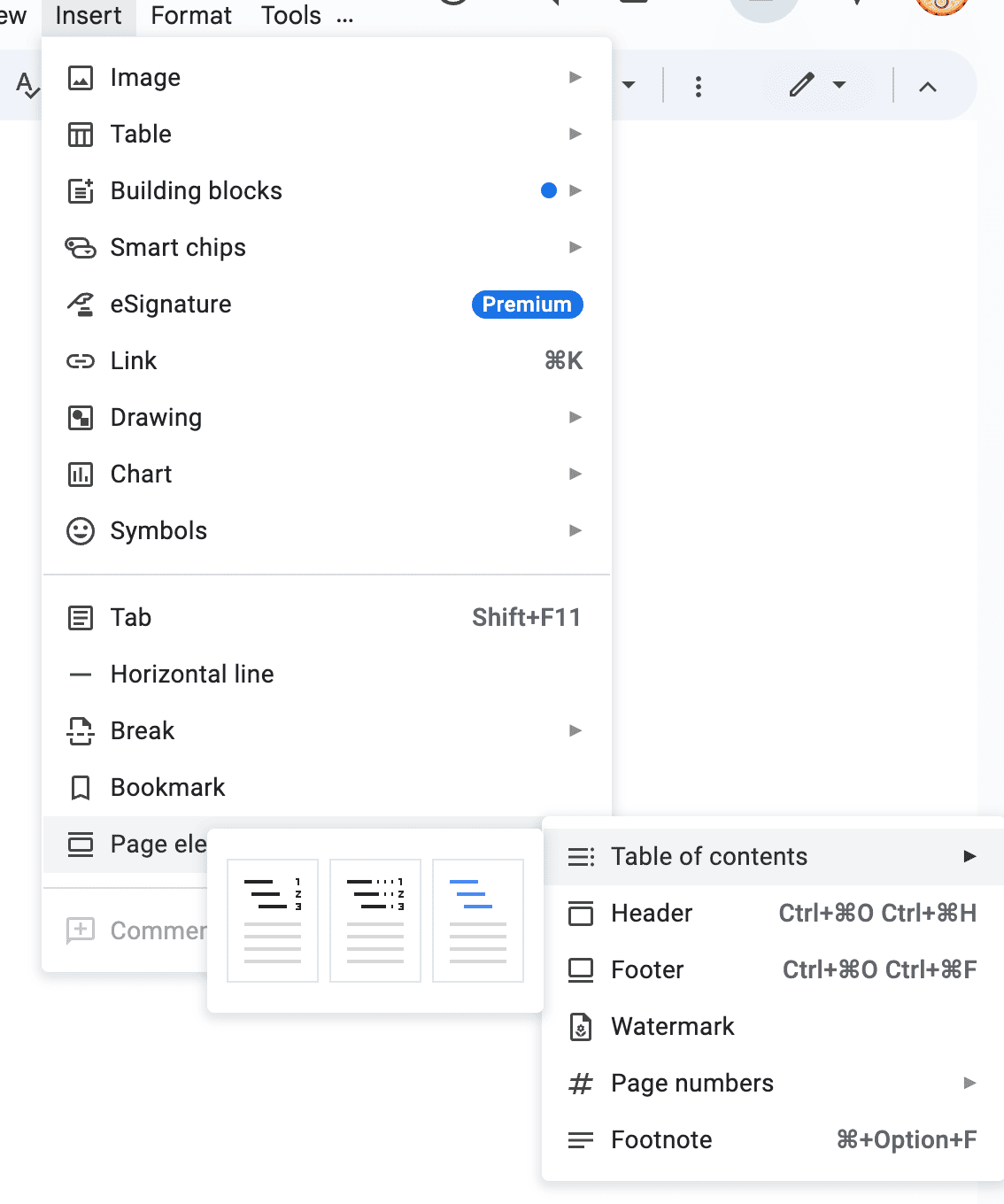
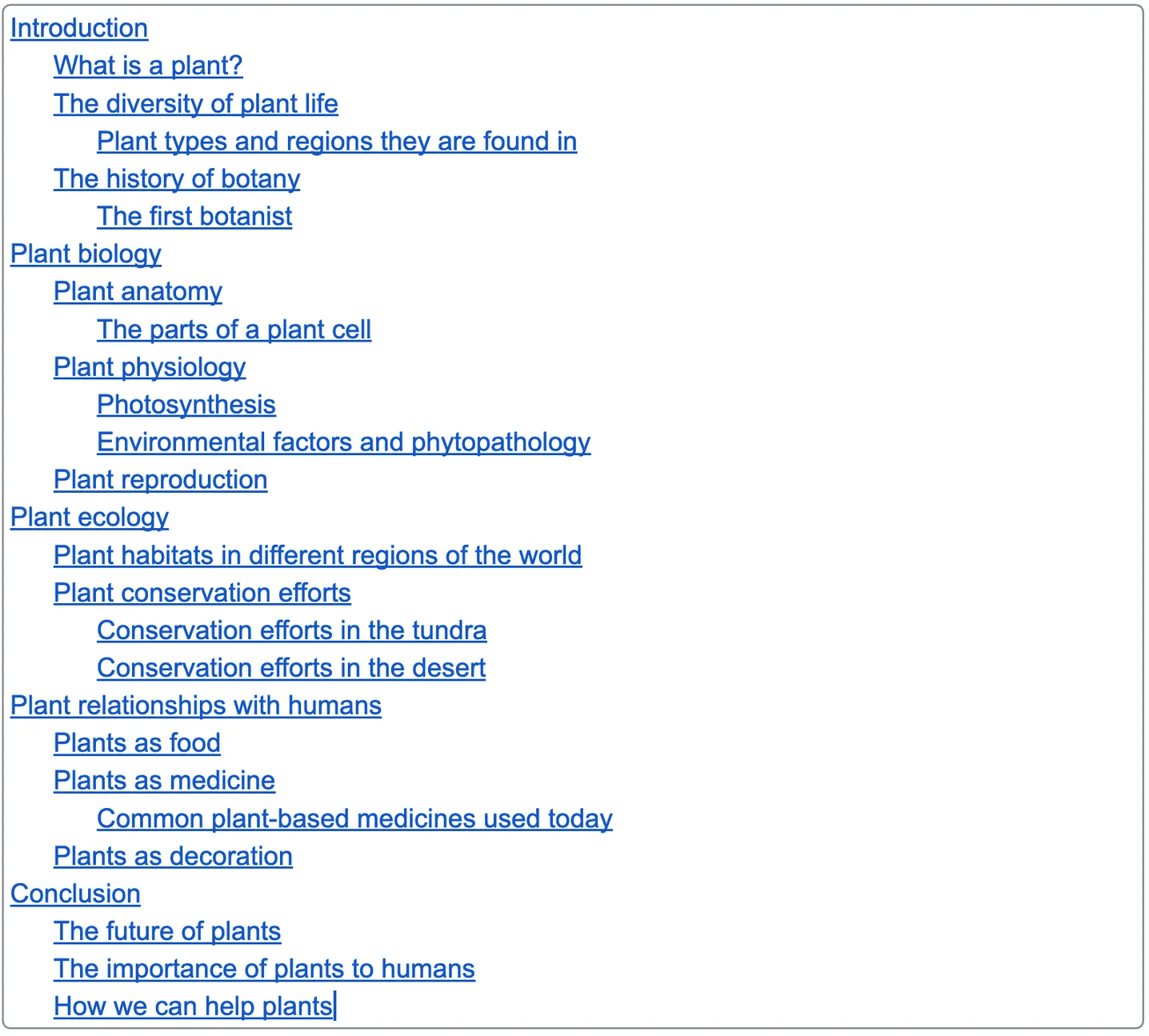
To form a table of contents: go to Insert→Page Elements→Table of Contents, where you’ll get 3 style options:
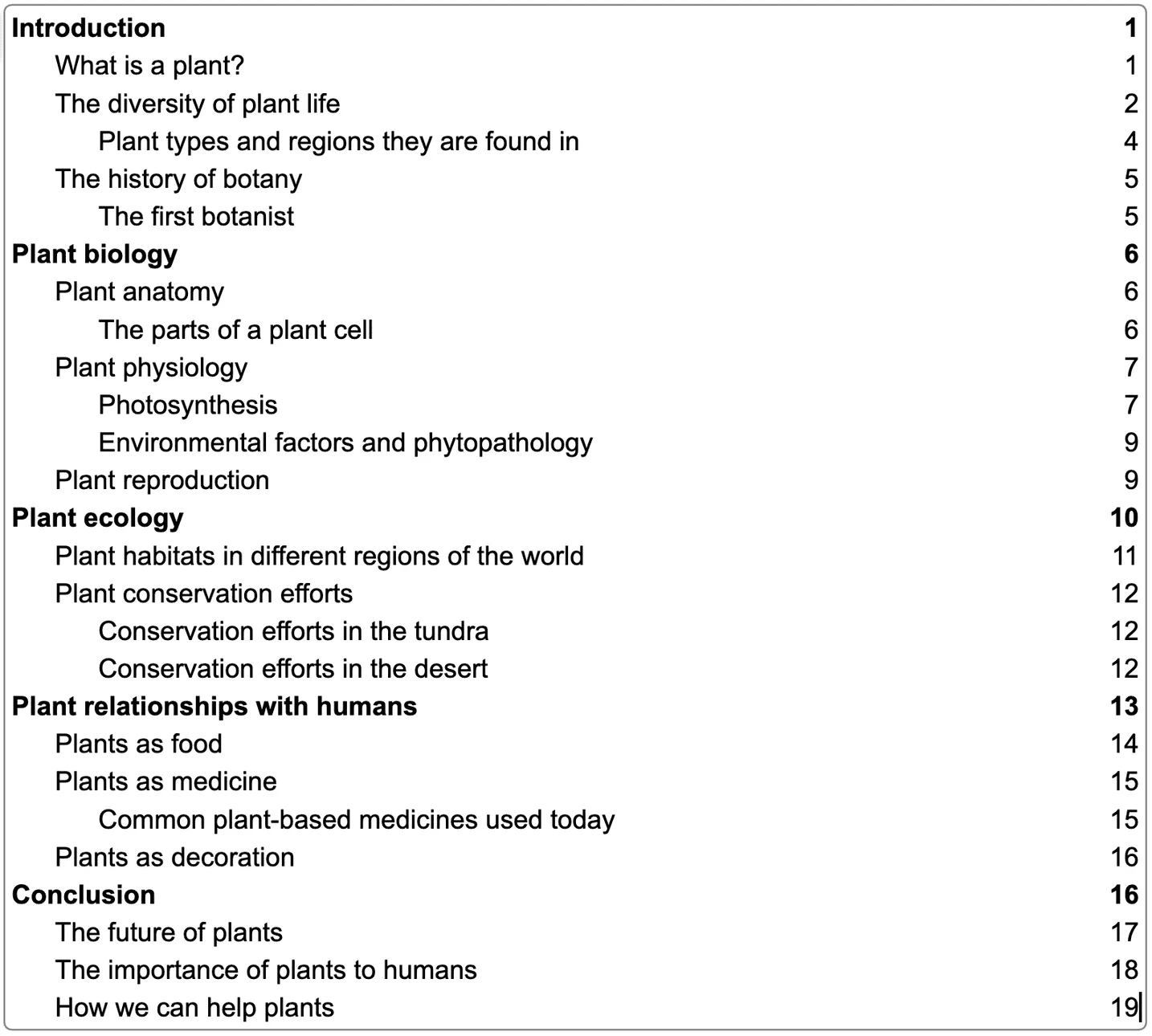
First is the simple one, the good old one:
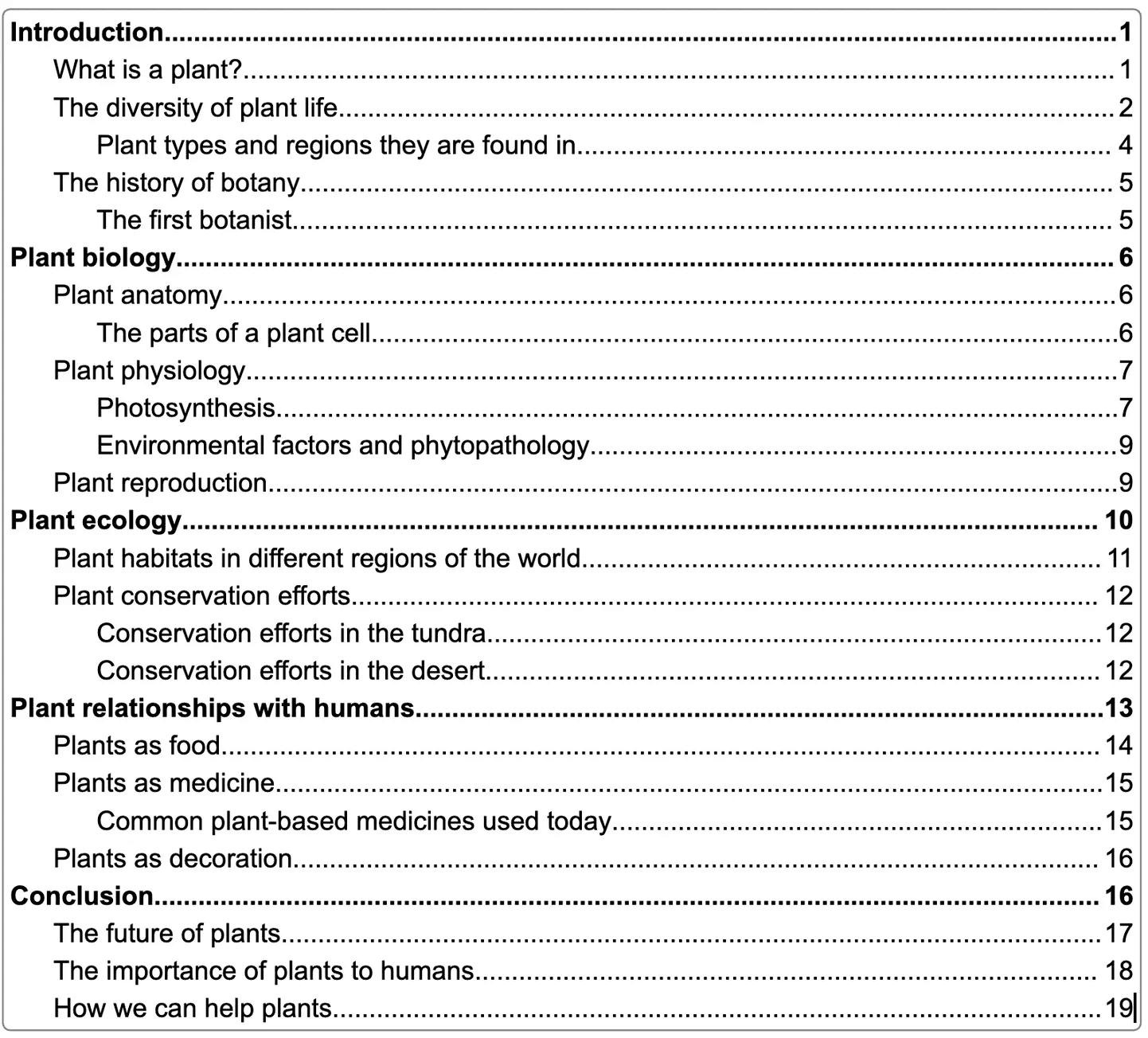
Second, the dotted style table of contents, which is ideal for print books, and the dotted lines help the readers to easily match the chapter with the page number, in case there are a lot of chapters and subheadings.
The third style is Links, best for e-books. These clickable links directly take the reader to the intended chapter or subheading.
Preface
Usually, a preface is written by someone else, informing readers about how the book came to be, like an introductory essay.
It’s rather simple to implement it; just make sure it is written on a single, isolated page and use the Heading 1 style so it appears in your TOC.
Step No. 5: Automate Your eBook’s Page Numbers
Page numbers are, without a doubt, one of the most helpful elements in reading, and Google Docs’s automated page numbering turns it into a piece of cake. Moreover, it’s far better and more efficient than manual numbering, keeping the document organized and navigational.
When page numbers are automated, every page updates its numbers automatically when you add, remove, or move content. It prevents mistakes and inconsistencies that usually occur in manual editing.
To do it:
First, select the page from which you want to start the page numbering; ideally, it should start from a chapter, but you can start it even before if necessary.
Then, click on insert→Break→section break (next page). This ensures the numbered page starts on a new page.
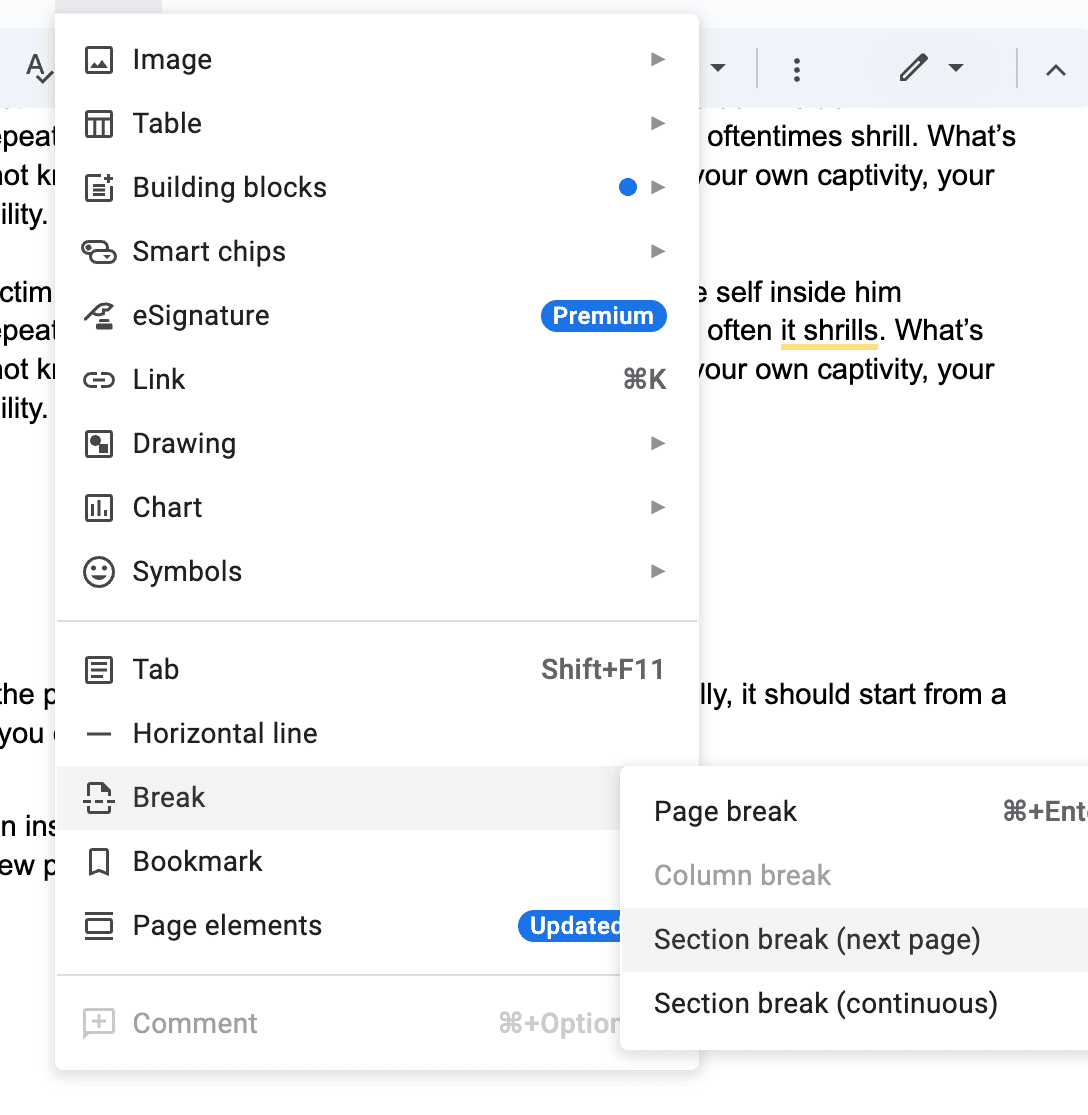
Next, click on Insert again, and go down to page elements, then to page numbers, select the layout you want.
Page numbers will appear in the end corners or in the centre, as per the chosen layout. Your selected page won’t get number 1 right after doing it, for that, you’d have to untick the box ‘link to previous’.

Then click on options and write 1 in the numbering section.
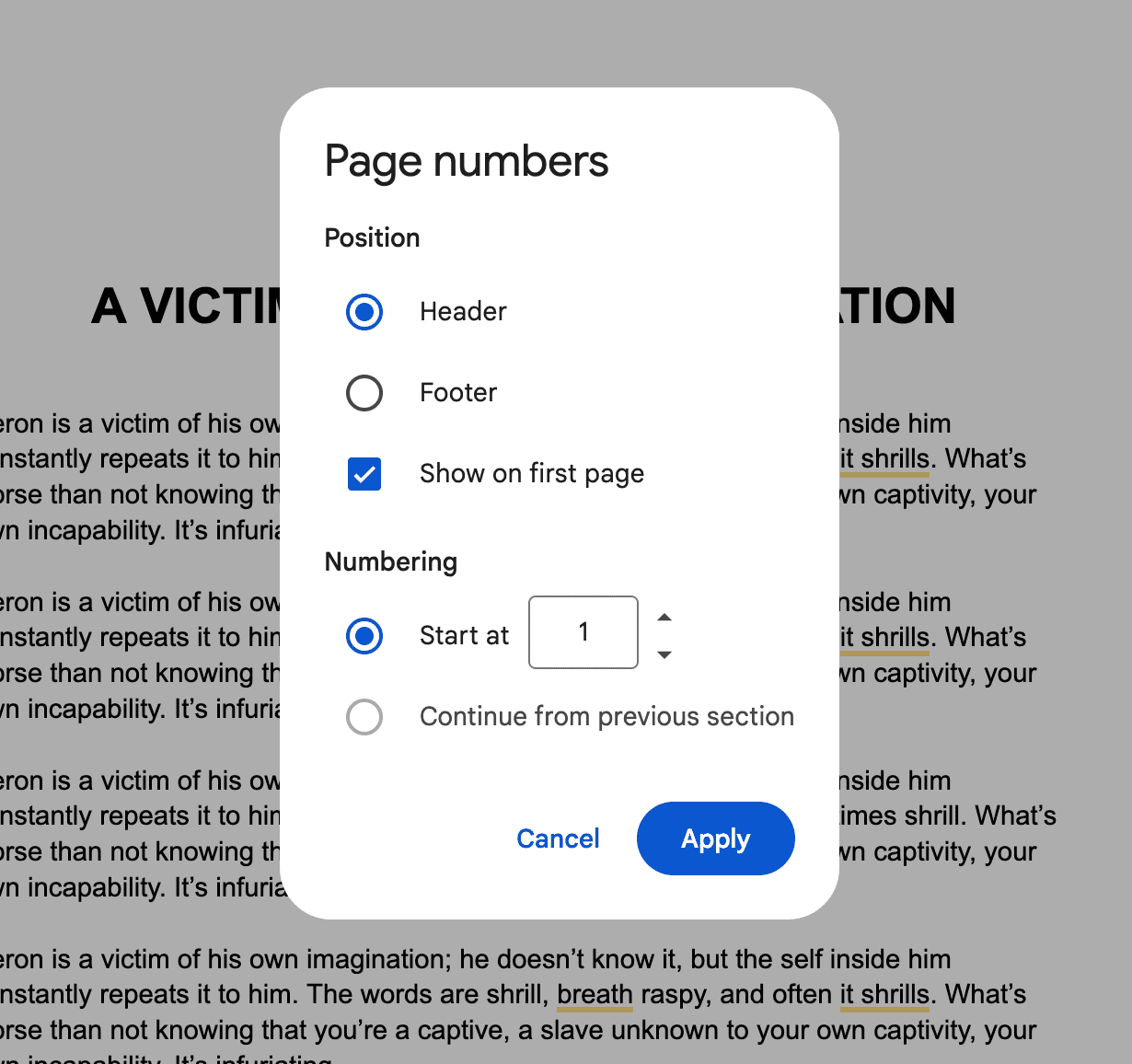
Make sure ‘start at 1’ is selected, and click on ‘apply’, and there we go, all of your following pages will get numbered cleanly, no hassle.
Last Step, Step No. 6: Finally, Export Your Formatted Book
Nice, you’re almost done with formatting your book, just need to export it before you hopefully send it to the publishers. Take a breath, and tab icon on the left sidebar to view the outline of your whole book. Ensure every section aligns and is in order.
DOWNLOAD THE BOOK. Click on File→Download. You can download it in any format you need. However:
PDF Document (.pdf): Ideal for print and to preserve margins, fonts, and page breaks.
EPUB Publication (.epub): Suitable for ebooks, and it’s the standard for most platforms.
Formatting a book using Google Docs isn’t a mountain climb; just by following the above simple steps, you’ve formatted a whole book, that too without expensive software or wasting hours on learning to operate it.
From setting page dimensions in step 1 to exporting your magnum opus in step 6, this blog has covered every essential step that transforms a raw manuscript into a polished, publishable book. If you’re still looking for professional editing and proofreading services, then PaperTrue is here for you.
So take your finished manuscript, export it, and send it out into the world. You’ve done the grind; now it’s time to share the result of it.
Read More: